How to Clean a Laser Printer, Step by Step
To clean a laser printer, turn it off, unplug it, let hot parts cool, and remove loose toner with a dry, lint-free cloth. Follow your printer manual for parts you can touch, and never spray cleaner inside.
On this page (8 sections)
- How do you clean a laser printer safely?
- How do you clean the outside, tray, and paper path?
- How do you clean toner from inside a laser printer?
- How do you clean a laser printer's toner cartridge?
- What should you do after cleaning?
- Which supplies help with cleaning and upkeep?
- How can you keep a laser printer cleaner?
- What is the safest way to clean a laser printer?
To clean a laser printer, turn it off, unplug it, let hot parts cool, and remove loose toner with a dry, lint-free cloth. Follow the printer manual for parts you can touch, and never spray cleaner inside.
A careful cleaning can clear loose dust and debris from the paper path, tray, and accessible surfaces. It won't fix every streak or smudge, since worn or misplaced printer parts can cause similar marks.
How do you clean a laser printer safely?
Switch the printer off, unplug it, and wait for hot parts to cool before opening any covers. Your printer's manual is the authority on which panels and parts you can access.
Gather a soft, dry, lint-free cloth and a small waste bag for debris. Work in a ventilated area, keep toner away from clothing, and avoid blowing dust around with compressed air.
Don't use water, household spray, solvents, or a regular vacuum inside the printer. Don't touch the drum, transfer belt, or fuser unless the manual gives a specific cleaning step for that part.
What should you do before cleaning a laser printer?
Prepare the printer before you remove a toner cartridge or drum unit. Take note of how parts sit so you can put them back in the same way.
- Turn off and unplug the printer.
- Let the printer cool for the time stated in its manual.
- Remove paper from the tray and check for loose scraps.
- Open only the covers the manual identifies for user access.
- Keep removed supplies on a clean, protected surface.
If the printer is in a tight space, move it only if you can lift it safely and keep it level. Don't pull on cables or force a cover that resists opening.
How do you clean the outside, tray, and paper path?
Wipe the outside and accessible tray with a dry, lint-free cloth, then remove loose paper scraps from the paper path. Follow the manual before cleaning rollers or other internal parts.
For the exterior, use a clean cloth and gentle pressure. If the manual allows a slightly damp cloth, keep moisture away from openings and dry the surface before reconnecting power.
Remove the paper tray if the manual says it is user-removable. Lift out scraps by hand rather than pushing them deeper into the feed path.
Paper dust can collect around the tray and feed area over time. For paper jams or feed trouble, use the model's jam-removal steps instead of reaching into a part you cannot see.
How do you clean toner from inside a laser printer?
Remove only loose toner from areas the manual says you can reach. Use a dry, lint-free cloth and avoid rubbing toner into plastic or touching sensitive parts.
Don't use an ordinary vacuum or compressed air to clear toner. Both can scatter fine particles, and a household vacuum may not trap them safely.
If toner spills on skin, follow the printer maker's cleanup guidance and wash the area with cool water. Avoid hot water, which can make toner harder to remove.
Should you clean the drum unit?
Only clean the drum unit if your printer manual gives a specific method. The drum surface can be damaged by touch, scratches, or unapproved cleaners.
Some printers include a cleaning wire or slider designed for a particular drum. Move it only as the manual describes, then return it to its home position if instructed.
If your Brother printer reports a drum message, see our guide to what “Drum End Soon” means on a Brother printer. A status message calls for the model's maintenance steps, not general wiping.
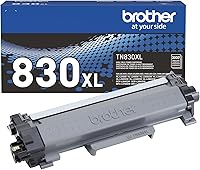
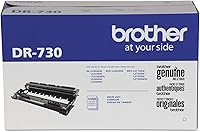
Replace a drum only when the printer's instructions or print quality point to replacement. The DR830 is designed to work with Brother Genuine TN830 or TN830XL toner in compatible monochrome printers.
How do you clean a laser printer's toner cartridge?
Handle the cartridge by its body and follow the printer manual before removing or cleaning it. Avoid touching the drum or toner openings, and keep the cartridge level to limit spills.
A toner cartridge is a supply, not a general-purpose cleaning tool. If it is damaged, leaking, or no longer prints properly, use the printer's replacement instructions.
Brother gives the TN830XL a yield of up to 3,000 pages, though actual results vary with what you print. For more context on supply life, read how long toner lasts in a laser printer.
What should you do after cleaning?
Reinstall any removed parts as the manual directs, close all covers, and reconnect the printer. Print a test page using the printer's built-in menu or the method in its manual.
If the page looks clean, return the printer to its normal spot and keep the area around it free of paper scraps. If marks remain, note their shape and location rather than repeating the same cleaning steps.
A drum or cartridge can affect print quality even when the visible paper path is clean. Learn the common causes in our guide to Brother printer black streaks on paper.
What if the printer still has streaks or smudges?
Use the printer's troubleshooting guide when marks remain after a safe cleaning. Repeated streaks may point to a drum, cartridge, or other part that needs attention.
Check whether the marks repeat at regular intervals or appear only on certain pages. Keep the sample page for support, and avoid opening service-only covers.
If the issue began after changing toner, check that the cartridge is seated correctly and is the right type for your printer. Our home laser printer guide can help if you're comparing printers for a household that needs a different setup.
Which supplies help with cleaning and upkeep?
For routine care, a dry lint-free cloth and the printer manual are usually the first things to reach for. A replacement supply helps only when the printer's message or print quality indicates that a part needs changing.
The Brother HL-L2460DW is a monochrome laser printer that uses Brother Genuine TN830 or TN830XL toner and a DR830 drum. Its maker describes it as a home office printer with a manual feed slot for envelopes and specialty paper.
Use the manual to identify user-accessible parts and approved cleaning steps for your model. Printer designs differ, so don't assume a cleaning method for one model applies to another.
How can you keep a laser printer cleaner?
Store paper in a dry place, keep the tray free of scraps, and follow the maintenance instructions for your model. These habits reduce loose debris without requiring you to take the printer apart.
Use paper that matches the printer's supported types and sizes. Remove jammed sheets according to the manual, since torn scraps left behind can cause more feed problems.
If you print infrequently, protect the printer from dust while keeping ventilation openings clear. Avoid covers that block airflow or trap heat during operation.
What is the safest way to clean a laser printer?
The safest approach to how to clean a laser printer is to unplug it, let it cool, and clean only accessible areas with a dry cloth. Stop if you need to force a part, touch a sensitive surface, or use a chemical the manual doesn't approve.
Choose a replacement toner cartridge or drum only when the printer's instructions point to one. If cleaning doesn't clear the marks, use the printer's troubleshooting steps or contact the maker's support team.
Frequently asked questions
How often should you clean a laser printer?
Clean a laser printer when you see loose paper dust, toner, or debris, and follow the maintenance schedule in its manual. If you print often, inspect the paper path and tray more regularly.
Avoid taking the printer apart for routine cleaning unless the manual directs you to.
Can you use a vacuum to clean toner from a printer?
Don't use an ordinary household vacuum on spilled toner. Fine toner can pass through some vacuum filters and spread into the air.
Follow the printer maker's instructions for cleanup, and use only a toner-rated vacuum if the manual or service guidance recommends one.
Can you use alcohol to clean a laser printer drum?
Don't wipe a drum with alcohol unless the printer manual specifically permits it. Drum surfaces can be sensitive, and touching or scratching them may affect print quality.
Use the cleaning method and tools specified for your model, or contact the maker's support team.
Why are there still streaks after cleaning a laser printer?
Streaks can come from toner, a drum, a transfer part, or another issue, so cleaning the accessible areas may not solve them. Check the manual's troubleshooting steps and the printer's status messages.
Our guide to black streaks on Brother printer pages explains common causes and next checks.