Brother Printer Drum End Soon Meaning and What to Do
The Brother printer message Drum End Soon means the drum unit is nearing the end of its expected life. Check your printer’s manual for the exact steps and compatible replacement, then replace the drum when prompted.
On this page (8 sections)
- What does Brother printer Drum End Soon mean?
- Is Drum End Soon the same as a toner warning?
- Can you keep printing after the warning appears?
- How do you choose the correct Brother drum unit?
- What should you do when the warning appears?
- What if the message stays after replacing the drum?
- How can you tell whether the drum needs attention?
- Which drum should you choose?
The Brother printer Drum End Soon message means the drum unit is nearing the end of its expected life. Check your printer’s manual for the correct replacement and reset steps; toner and drum warnings refer to different parts.
The warning is usually a reminder to plan a replacement, not proof that the toner cartridge is empty. If the printer still produces clear pages, you may be able to finish a short job, but follow the message and your model’s instructions.
What does Brother printer Drum End Soon mean?
It means the printer estimates that the drum unit is close to its replacement point. The drum helps transfer toner onto paper, and it is separate from the toner cartridge in many Brother laser printers.
The exact message and steps vary by model. Check the printer screen, its manual, or Brother’s support page for your model before ordering a part or changing a counter.
A drum warning does not automatically mean the print quality has already failed. Keep an eye on output, and plan for the correct drum unit rather than assuming a new toner cartridge will resolve the warning.
Is Drum End Soon the same as a toner warning?
No, a drum warning and a toner warning refer to separate supplies. Replacing toner may not clear a drum-life notice because the printer tracks the drum unit separately.
For a primer on toner life, read how long toner lasts in a laser printer. If you're estimating cartridge output, how many pages a toner cartridge prints explains why page yield can vary with print coverage and use.
Some Brother printers use a combined supply design, so confirm your specific model’s setup. Brother’s supply finder can help identify the drum and toner parts for a printer.
Can you keep printing after the warning appears?
You may be able to keep printing for a while, but plan to replace the drum soon. Use the printer’s own prompt and manual as the guide for when printing must stop.
If the pages are clean and the printer has not asked you to replace the drum, there may be time to complete a small job. Avoid relying on that window for an important print run, since the warning signals that the drum is nearing its expected service life.
If you see streaks or marks, check the output and follow model-specific cleaning guidance. Our guide to Brother printer black streaks on paper covers common causes and checks.
How do you choose the correct Brother drum unit?
Match the drum number to your exact printer model before buying. Brother makes several drum units for different printer families, and a familiar brand name alone does not ensure compatibility.
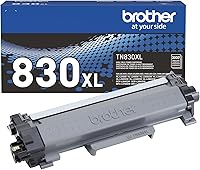
For example, Brother DR830 works with the TN830 and TN830XL black toner cartridges and is designed for a set of monochrome models including the HL-L2400D, DCP-L2640DW, and MFC-L2820DW. The DR730 is for another mono family, including the HL-L2350DW, DCP-L2550DW, and MFC-L2710DW.
The DR229CL serves listed color models such as the HL-L3220CDW, MFC-L3720CDW, and MFC-L3780CDW. Confirm your full model number against Brother’s compatibility information before choosing among these units.
The DR830 is described as yielding up to 15,000 pages, while Brother gives the DR730 a yield of up to 12,000 pages. The DR229CL is described as yielding up to 20,000 pages per standard-yield drum based on two letter or A4 single-sided pages per job; yield figures are not a substitute for checking compatibility.
What should you do when the warning appears?
Check the printer model, confirm the warning, and follow the manual’s replacement steps. Keep the exact model name and drum number handy when you look up supplies.
- Read the full message on the printer display.
- Confirm whether it says drum or toner.
- Find your model’s manual or Brother support instructions.
- Match the drum part number to the full printer model.
- Replace the unit using the printer’s instructions.
- Reset the drum counter only after replacing the drum, and only as the manual directs.
Reset menus differ between models, so avoid generic button combinations found for another printer. A counter reset without a new drum can make the printer’s estimate inaccurate.
What if the message stays after replacing the drum?
Check that the replacement is seated correctly, then follow the reset procedure for your model. The printer may continue showing the warning if it has not registered the new drum or if the counter was not reset as directed.
Power the printer down only as its manual instructs, then check the drum installation and close all covers fully. If the alert remains, consult Brother support with the printer model, the drum part number, and the exact screen message.
Don't keep resetting the counter to silence the alert. If the new drum is incompatible, the printer may not recognize it or may not print as expected.
How can you tell whether the drum needs attention?
Look for print-quality changes and follow the printer’s warning sequence. The alert alone does not identify a specific defect, so use the manual’s troubleshooting steps if pages look different.
Faint output can have several causes, including toner level or print settings. Repeated streaks or spots may also have more than one cause; see our guide to cleaning a laser printer before handling internal parts, and follow the manual’s safety directions.
Avoid touching the drum surface unless the instructions tell you to. Keep the unit away from bright light while it is removed, if the manual recommends that for your model.
Which drum should you choose?
For the Brother printer Drum End Soon message, choose by exact model compatibility first, then consider the drum family and its stated yield. The DR830 and DR730 suit different monochrome models, while the DR229CL is listed for compatible color printers.
Check Brother’s support information before ordering, and use the printer’s manual for installation and reset steps. If the notice is actually about toner, use the model’s toner guidance instead of replacing the drum.
Frequently asked questions
What does Drum End Soon mean on a Brother printer?
It means the printer is warning that the drum unit is nearing the end of its expected service life. The alert is separate from a low-toner message because toner and the drum are different parts.
Check your model's manual for the recommended next step and replacement part.
Can I keep printing when my Brother printer says Drum End Soon?
Often you can continue printing briefly, but the message means you should plan to replace the drum soon. Follow your printer's screen and manual, and replace the unit if print quality drops or the printer displays a replacement prompt.
Don't reset the drum counter unless you installed a new drum.
Is a Brother drum unit the same as toner?
No. Toner holds the powder used to make the image, while the drum transfers that image onto paper.
Some Brother printers use a separate drum and toner cartridge, so changing toner may not clear a drum-life warning.
Check your model's manual to confirm its supplies.
How do I know which Brother drum unit to buy?
Match the drum part number to your exact printer model using Brother's supply finder or the printer manual. Similar model names can use different drums, and a unit that fits one Brother series may not fit another.
Check both the printer model and the drum number before ordering.